 aiprentice
Auto outline interior elevations
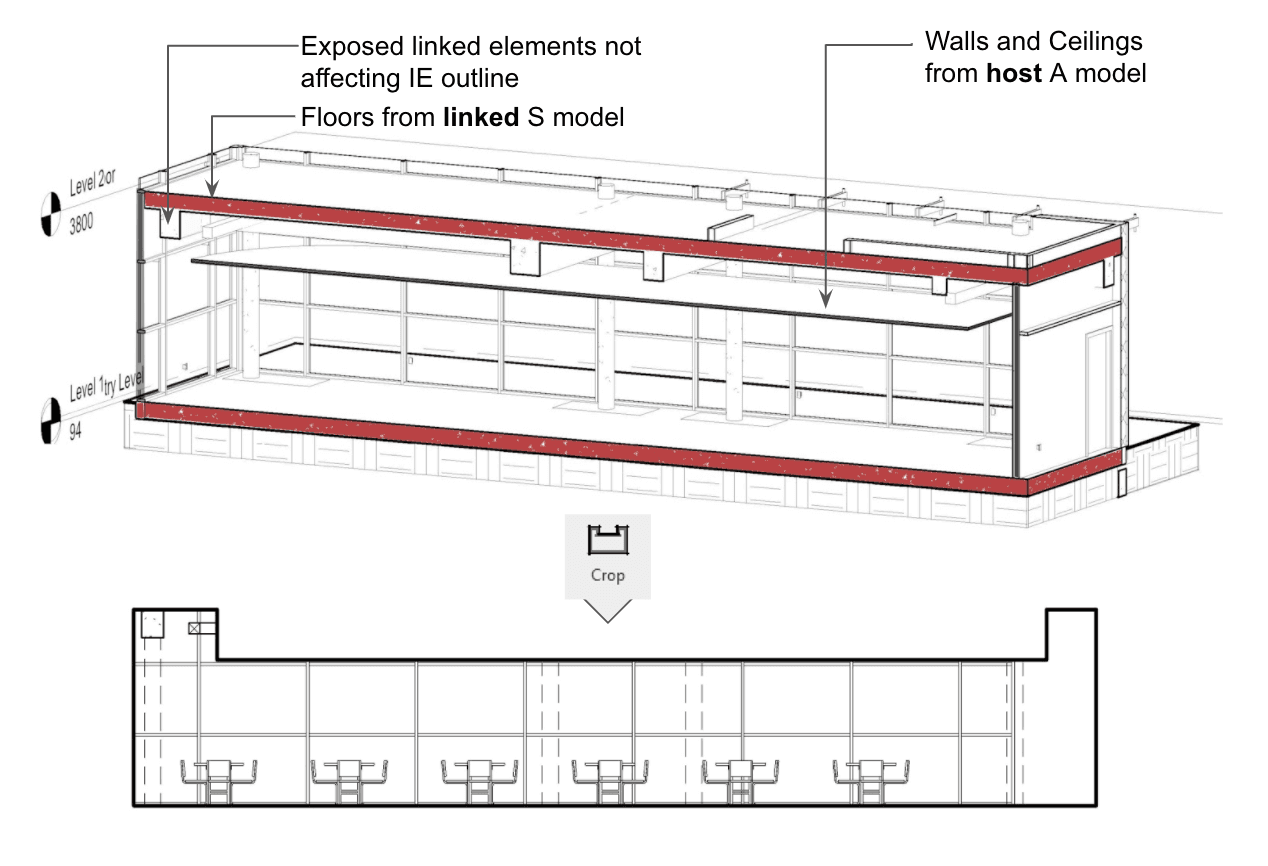
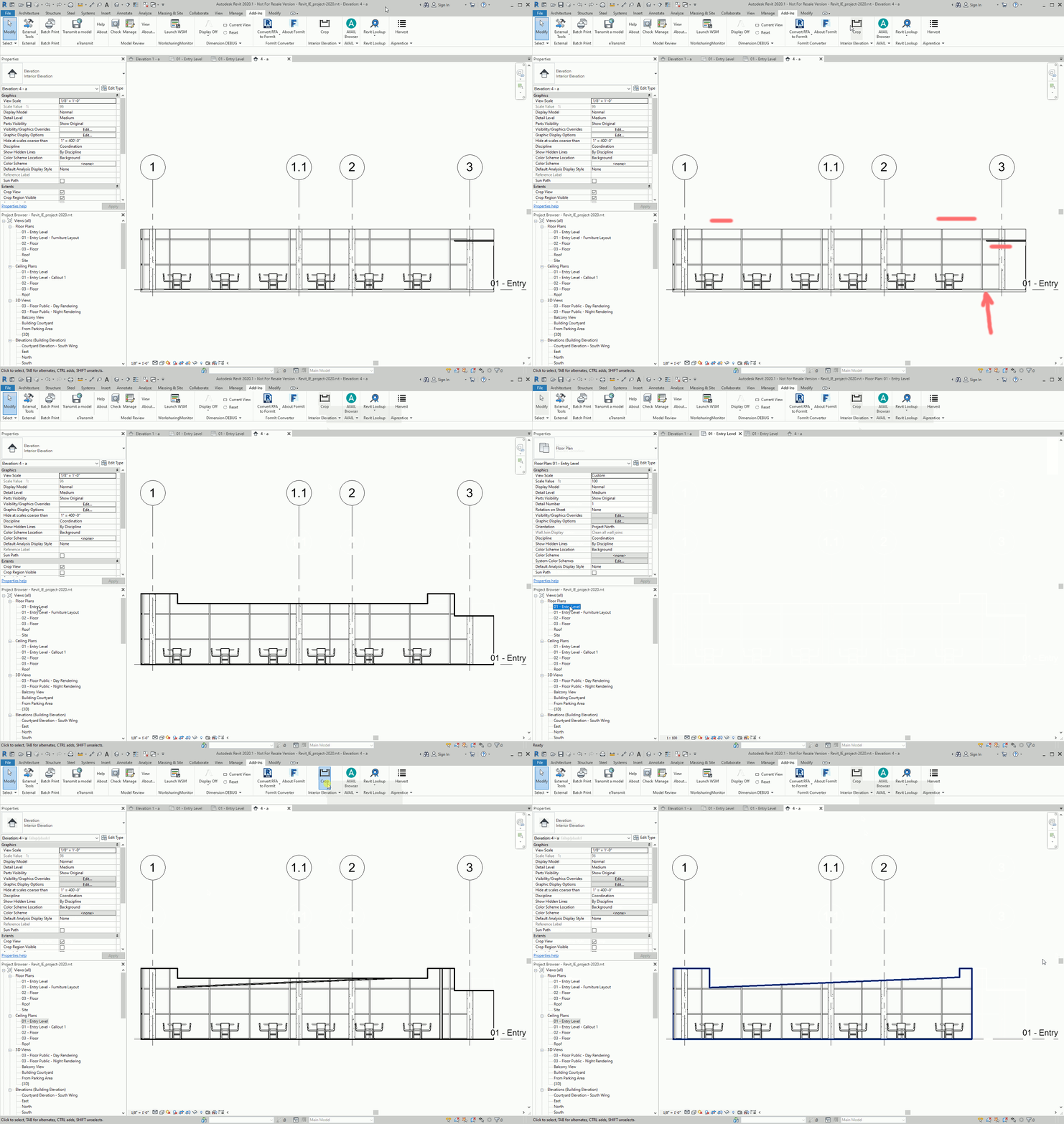
Interior elevation outlines are time-consuming to create, and require care when design changes, again and again. AutoCrop Revit® add-in takes care of creating and updating it in one click.
AutoCrop outlines interior elevations in Revit automatoically using filled regions or crop regions — with full configuration control and no manual drawing required. The addin sets the line style of the filled region if you use that method, so you can easily customize its appearance. It can also read geometry from linked models, and has a toggle to ignore linked models entirely if you prefer.
AutoCrop is a lightweight add-in that runs locally on your machine. It works with Revit 2021–2026, and is available for individual purchase or volume licensing.
Pricing
| Individual | Business |
|---|---|
| $15 / month per seat | Contact Us |
Installing
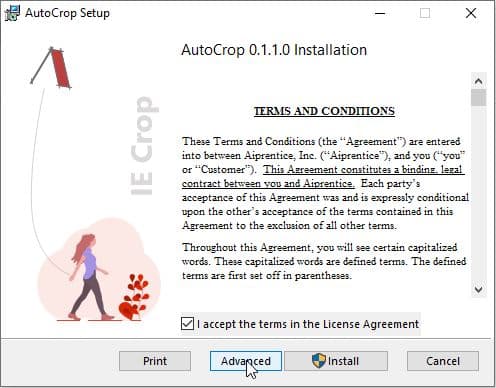
Download the installer and run it. The installer supports per-machine installation. We used to support per-user install in older versions — if you still need it, let us know.
Configuration
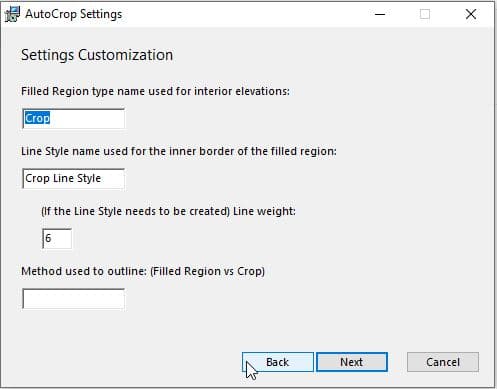
A few configurations can be set via the installer by clicking the Advanced button, which opens a configuration dialog.
Method used to outline
The default outline method is empty, and the UI will display toggle buttons to switch between the two supported methods: Filled Region and Crop Region.
You can fix the method at installation time to deploy a uniform choice across all Revit installations. The add-in looks for partial matches of “filled” vs “crop” (case-insensitive). When a choice is set here, the toggle is hidden from users. Leave the box empty to let users switch freely.
You can reverse a fixed choice by editing the .config file in the add-in's installation directory. The config file persists across upgrades and reinstalls; uninstalling does not remove it.
Other configurations for the Filled Region method
Most customers use Filled Region, so additional customizations are available for that method. These take effect only when Filled Region is active.
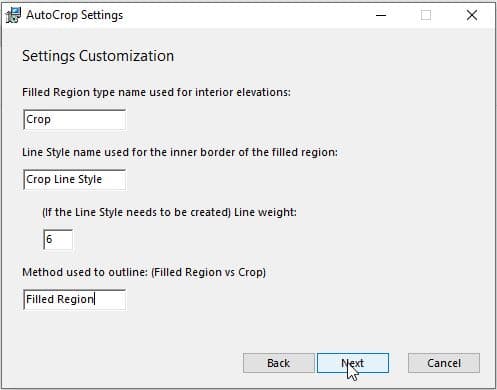
- Filled Region Type Name — Specify a type name for the filled regions AutoCrop creates. If a type with that name doesn't exist, it will be created.
- Line Type Name — Specify the line type for the internal curve loop. If your team already uses a dedicated line type for this purpose, set that name here. Otherwise the add-in creates a new one using the weight below.
- Line Weight — Sets the line weight when the add-in must create a new line type. Has no effect if an existing line type is found by name.
Changelog
- Sees and is able to crop elements from linked models.
- Sees Sloped Glazing on all kinds of roofs.
- Reload configuration without restarting Revit.
- Allow different handling of casework.
- Sees Sloped Glazing on Foot Print Roof.
- Split installer to support smaller range of Revit versions.
- Added support for Revit 2024.
- Reduced memory usage. Improved performance on larger models. Recommended for all users.
- Added support for Revit 2023.
- Improved robustness for CurveLoops used to create FilledRegion in Revit 2023.
- Added support for Revit 2022.
- Built with a new cert to remove expired certificate warnings in Revit.
- Reads fewer elements (only walls, floors, ceilings, and roofs) in linked models for better performance.
- Added a toggle to completely ignore linked models.
- Reads elements in linked models. Dual-mode operation for linked model geometry.
- Reading fewer geometry data by targeting only elements being cut.
- Outline can follow FamilyInstance geometry. Add-in now sees in-place families.
- Fixed a bug reading complete sets of nested geometry elements.
- Sends one extra crop command to reset crop to its initial state before the final one.
- Performance improvements by sending less data.
- Capability to rename views.
- Revit 2021 support.
- Handle consecutive “crop” commands by adjusting crop, only updating filled region for the last one.